

TL;DR
To make a Google search "must include" a specific word or phrase, you need to enclose it in double quotation marks. For example, searching for "content marketing strategy" will only return results that contain that exact phrase. This is the current and most effective method, as the older plus-sign (+) operator is no longer used by Google for this purpose.
The 'Must Include' Problem: Why Google Ignores Your Keywords
It can be incredibly frustrating when you search for something specific, only for Google to return results that omit your most important keyword. You know what you're looking for, but Google seems to think it knows better, dropping words it deems non-essential. This common issue isn't a bug; it's a feature of how modern search engines work. It stems from Google's shift from a literal, keyword-based search to a more intelligent, semantic search model.
At its core, semantic search is Google's attempt to understand the intent and contextual meaning behind your query, rather than just matching the individual words you've typed. For instance, if you search for "best computer for college student," Google might show results for "best laptop for university learners." It understands the concepts are related and aims to provide a broader, more helpful set of results. This can be useful for discovering related topics you hadn't considered.
However, this approach has a significant downside: a loss of precision. For users conducting technical research, looking for a specific product model, or trying to find a particular quote, this lack of control can lead to irrelevant results. As noted by users across Google's own help forums, this behavior can make searching feel inefficient. Fortunately, you don't have to settle for Google's best guess. There are powerful tools, known as search operators, that allow you to take back control and demand the precision you need.
The Definitive Solution: Using Quotation Marks for Exact Matches
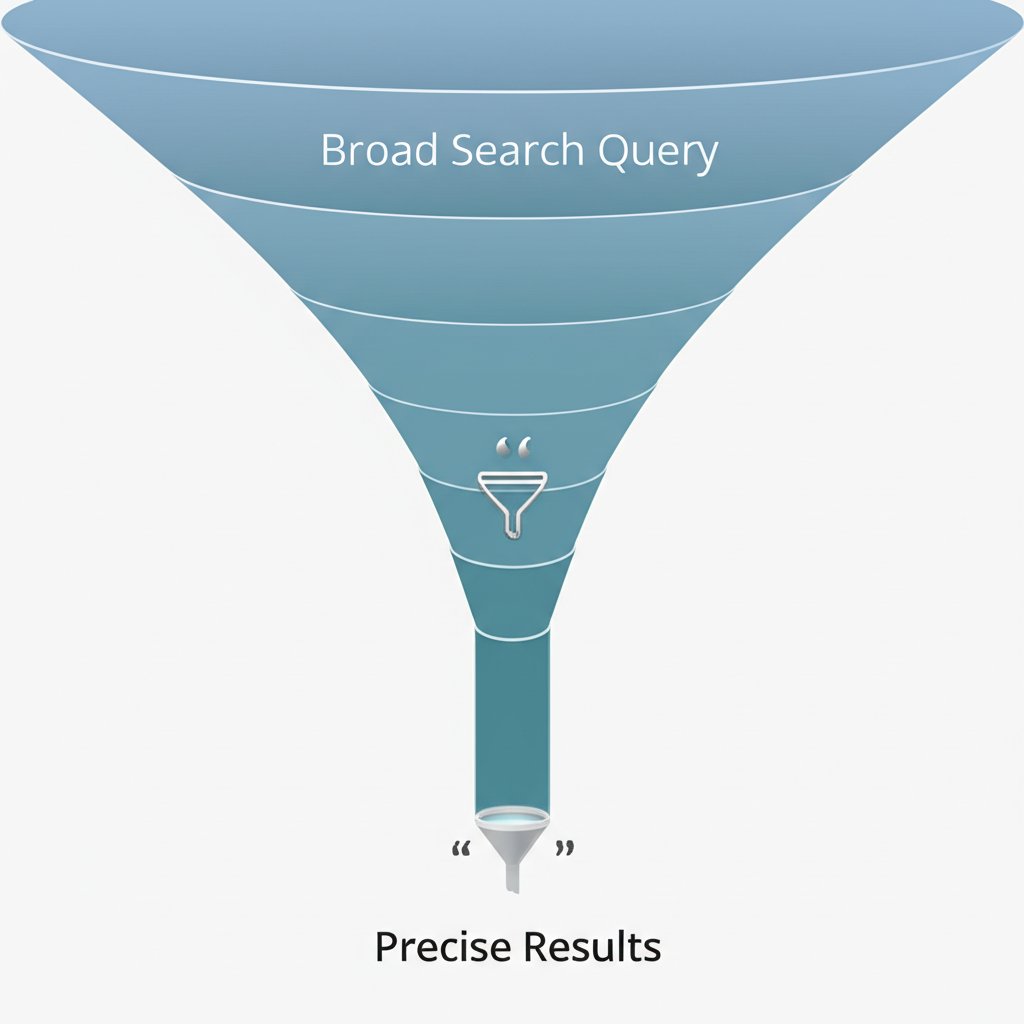
The simplest and most powerful way to force Google to include a specific word or phrase is by using double quotation marks (" "). According to Google's official documentation, this operator tells the search engine to find the exact string of characters you've entered, in the exact order you've typed them. It effectively switches off the semantic interpretation for that part of your query and enforces a literal match.
The difference can be dramatic. Let's look at an example:
- Without Quotes:
digital marketing for startupsThis search might return pages about online advertising, social media for small businesses, or even articles that don't mention "startups" at all, substituting it with "new companies." - With Quotes:
"digital marketing for startups"This search will only show results that contain the exact phrase "digital marketing for startups." Every single result must have those four words in that specific order.
Mastering this simple operator is the key to regaining control over your search results. It's an indispensable tool for anyone who needs precision.
Best Use Cases for Quotation Marks
- Finding Specific Phrases or Quotes: If you're trying to find the source of a quote or a specific sentence in an article.
- Searching for Technical Terms: Ensuring that technical jargon, code functions, or specific model numbers aren't misinterpreted.
- Clarifying Ambiguous Searches: Forcing a specific context when a word has multiple meanings (e.g., searching for the band "Eagles" instead of the bird).
- Controlling Word Order: When the order of words is critical to the meaning of your search.
Mastering Precision: A Guide to Essential Google Search Operators
While quotation marks are the primary solution for the "must include" problem, they are just one of many powerful tools at your disposal. Learning to combine several Google search operators can turn a simple search into a highly targeted research query. These special commands, explained in detail by resources like Ahrefs, allow you to filter results with incredible precision.
For professionals like marketers and content creators who frequently perform complex research, mastering these operators is a superpower. While manual searches are great for specific tasks, scaling this research for content strategy can be time-consuming. This is where AI-powered tools can help. For instance, platforms like BlogSpark can streamline the content creation process, from discovering keywords to generating SEO-optimized articles, freeing up your team to focus on broader strategy.
Here are some of the most essential operators you can start using today:
| Operator | Function | Example |
|---|---|---|
| - (Minus Sign) | Excludes a specific word from the results. | jaguar speed -car |
| site: | Restricts the search to a single website or domain. | content strategy site:forbes.com |
| * (Asterisk) | Acts as a wildcard to represent any word or phrase. | "how to market a * business" |
| filetype: | Searches for a specific type of file. | market research report filetype:pdf |
| intitle: | Finds pages that contain a specific word in their title tag. | intitle:"seo checklist" |
By combining these, you can create incredibly specific queries. For example, if you wanted to find PDF guides about link building from university websites but exclude any that mention "scholarships," your search would look like this: "link building" site:.edu filetype:pdf -scholarships. This level of control transforms Google from a simple search box into a powerful research database.

The Old 'Plus' Operator: A Quick History
If you've been using search engines for a long time, you might remember using a plus sign (+) to force a word to be included in your search results. For years, this was the standard way to ensure a keyword wasn't dropped. However, it's crucial to understand that this operator is now deprecated and no longer serves this function. Relying on it today will not give you the precise results you're looking for.
The functionality of the plus sign was officially dropped by Google around 2011. The change was partly made to allow users to search for brands and terms that actually used the plus symbol, such as the now-defunct Google+ social network. Over time, Google's algorithm evolved to a point where it was felt that semantic search and the quotation mark operator were sufficient for user needs.
Some older guides or forum posts might still mention the plus sign, which can cause confusion. As detailed by SEO experts at Orbit Media, this operator is no longer reliable for forcing word inclusion. The key takeaway is simple and definitive: to force Google to include a word or phrase today, you must use quotation marks. The plus sign is a relic of a past search era.
Frequently Asked Questions
1. How to Google not include?
To exclude a term from your Google search, you should use the minus sign (-) directly in front of the word you want to remove, with no space in between. For example, if you are searching for information about the car brand Jaguar but want to avoid results about the animal, you could search for jaguar speed -animal. This tells Google to return all pages relevant to "jaguar speed" but to filter out any that also mention the word "animal."